
Touch Switch Using Arduino and Touch Sensor
We use a touch sensor that functions as a switch, activating when touched. After completing the circuit, upload the provided Arduino code. The touch switch will begin operating as soon as the Arduino board is powered on.
TRAINING
2/3/20252 min read
We use a touch sensor that functions as a switch, activating when touched. After completing the circuit, upload the provided Arduino code. The touch switch will begin operating as soon as the Arduino board is powered on.
How Does it Work?
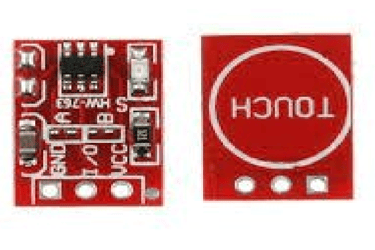
The touch sensor used is the TTP223 digital capacitive touch module, which functions as a one-touch key. When the sensor is touched, it generates a HIGH output, and in normal conditions, it outputs a LOW signal. Upon touching the sensor, the LED turns on, and the message “TOUCHED” is displayed on the serial monitor screen.
Here is the pinout diagram of the touch sensor:
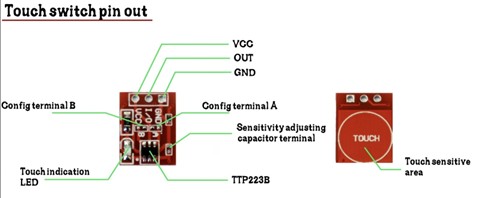
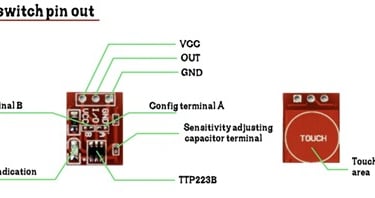
Required Components:
● Arduino UNO
● USB cable for code upload
● Touch sensor
● Jumper wires
● Breadboard
● One LED
Circuit Diagram for the Project:
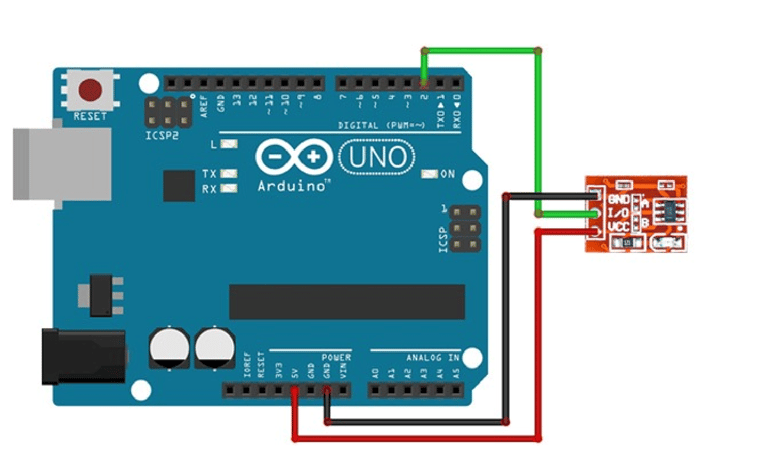
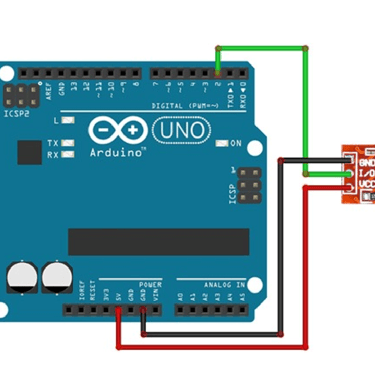
Connect the components as shown in the diagram above. You can power the Arduino using either batteries or a USB cable. Connect the Arduino's 5V pin to the VCC pin of the touch sensor module, and the GND pin of the Arduino to the GND pin of the sensor. Connect the signal (SIG) pin of the touch sensor to digital pin 2 on the Arduino. For the LED, connect the positive leg to the signal pin of the sensor, and the negative leg to the GND pin. A breadboard can be used to simplify common connections, as demonstrated in the diagram at the end of this document. Once all the connections are made, upload the provided code to the Arduino.
Code:
int sensor_pin=2;// connect pin 2 to the i/o pin int currentstate; //current state of sensor int laststate;//previous state of the sensor void setup() {
pinMode(sensor_pin,INPUT); //set the sensor pin to input mode Serial.begin(9600);
} void loop() { currentstate=digitalRead(sensor_pin); //sensor status is stored in current state variable if(laststate==LOW && currentstate==HIGH) //logic when you touch sensor
Serial.println("The sensor is touched"); // prints on serial monitor delay(1000); }
Serial Monitor Screen Look Like This:
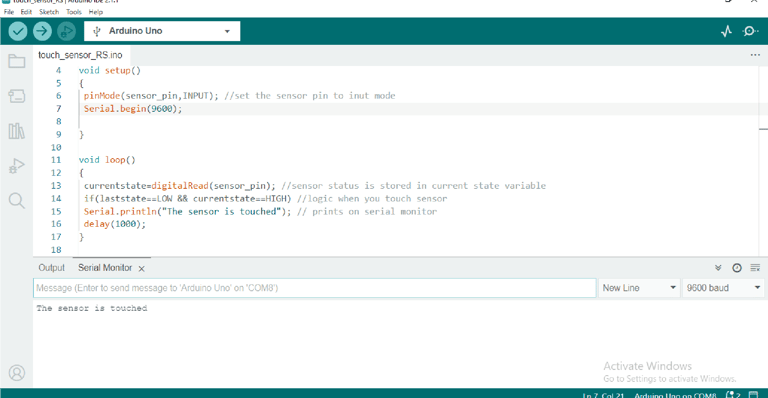
Fig: serial monitor when we touch it on the touch sensor
Working:
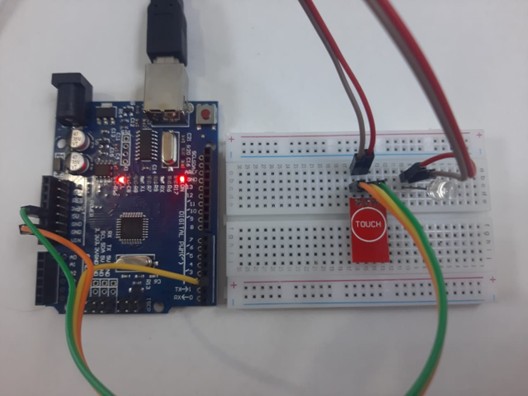
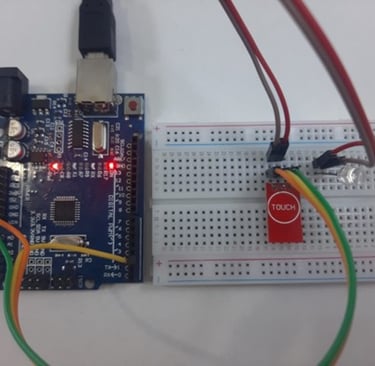
Fig: LED is OFF and LOW output as there is no touch it on the touch sensor
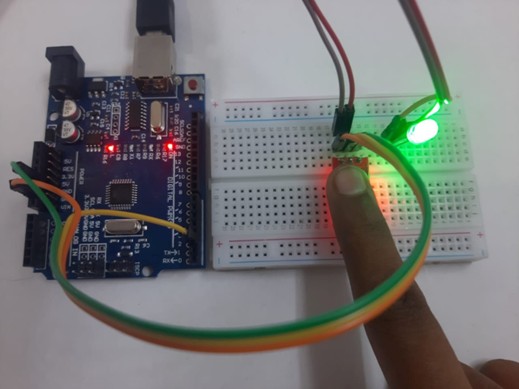
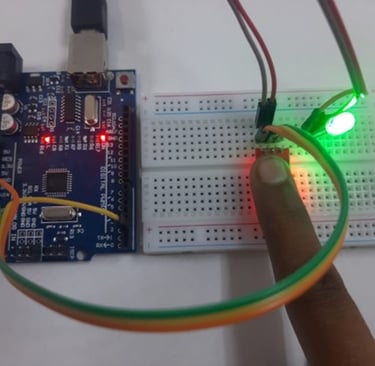
Fig: LED is ON and HIGH output when we touch it on the touch sensor